

This is Part 2 of our AI Operating System series. In Part 1 we explained what an AI Operating System is and why it works. Here we show you exactly where and how to set it up.
An AI Operating System only works if it’s actually configured. In this guide we show you step by step how to set up your system prompt in Claude and ChatGPT – with screenshots.
Claude: Setting up a system prompt via a Project
Claude’s Projects feature offers the cleanest solution for a permanent AI Operating System. A project has its own system prompt that applies to every conversation within that project.
Step 1 – Open project settings
Click on your project in the top left of Claude and open the settings.
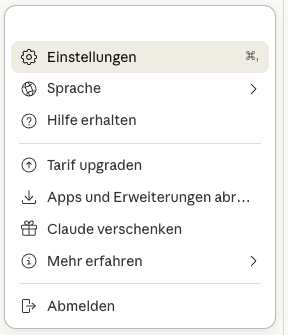
Step 2 – Paste your system prompt
In the settings window you’ll find the field for project instructions. Paste your full system prompt here. It will apply to all conversations within this project from now on.
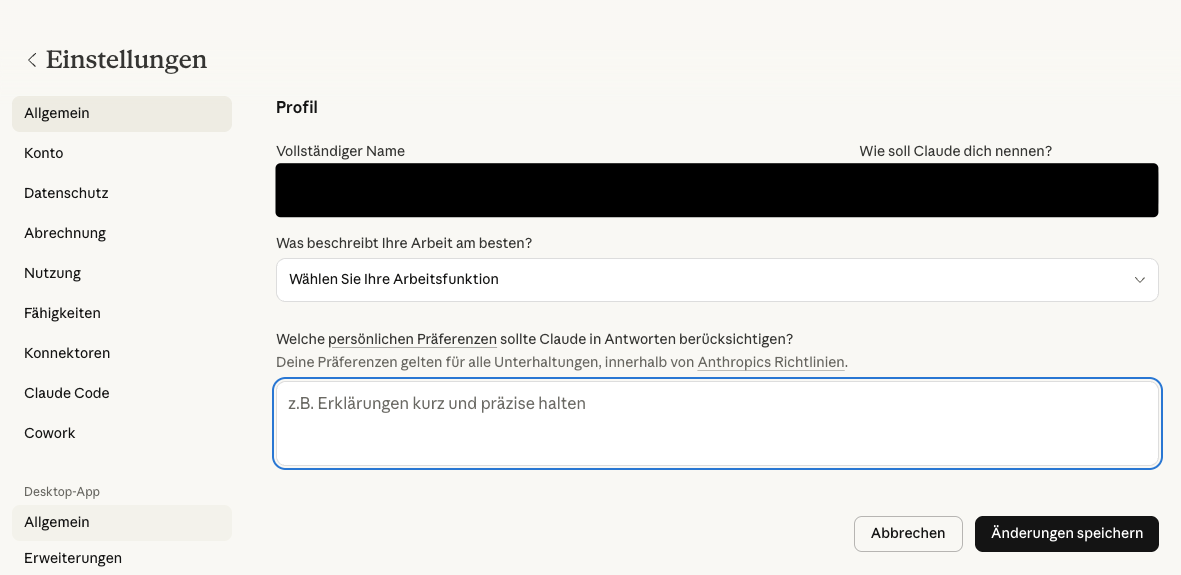
Claude advantage: The system prompt is project-specific. You can create separate projects for different contexts – work, editorial, strategy – each with their own instructions.
ChatGPT: Setting up system instructions via “Custom Instructions”
ChatGPT has two separate fields for system instructions that together fulfil the same purpose as a classic system prompt.
Step 1 – Open settings
Click on your profile picture in the top right of ChatGPT and select Settings → Personalisation.
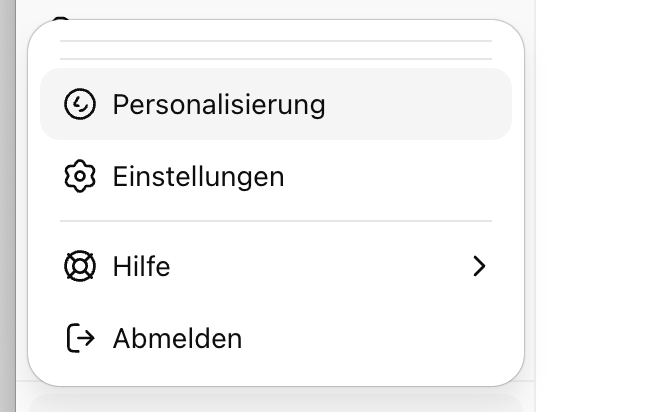
Step 2a – Fill in “What should ChatGPT know about you?”
The first field is for identity, company context, goals and work structure. Everything ChatGPT should know about you.
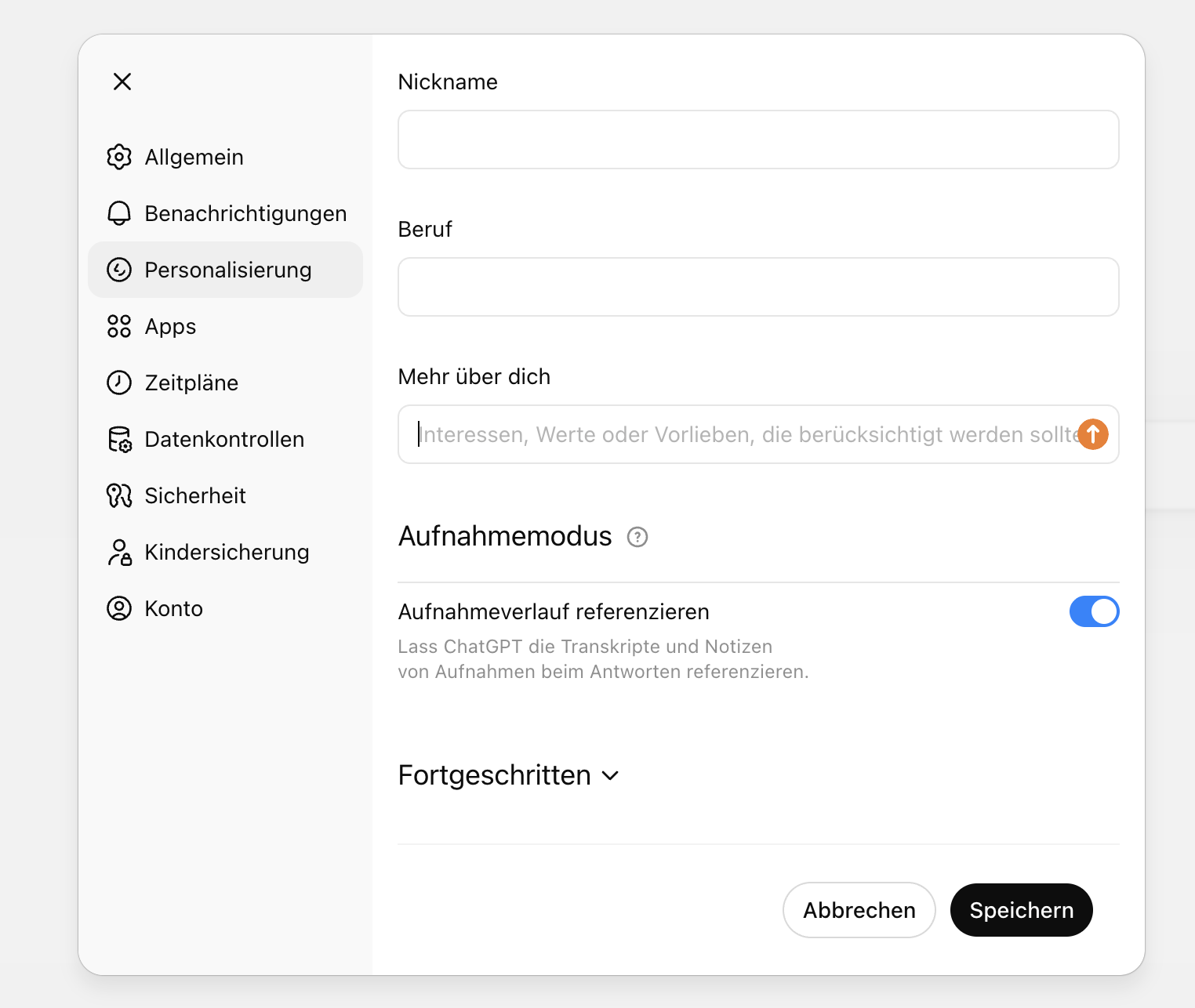
Step 2b – Fill in “How should ChatGPT respond?”
The second field is for communication style and things to avoid. How should ChatGPT answer?
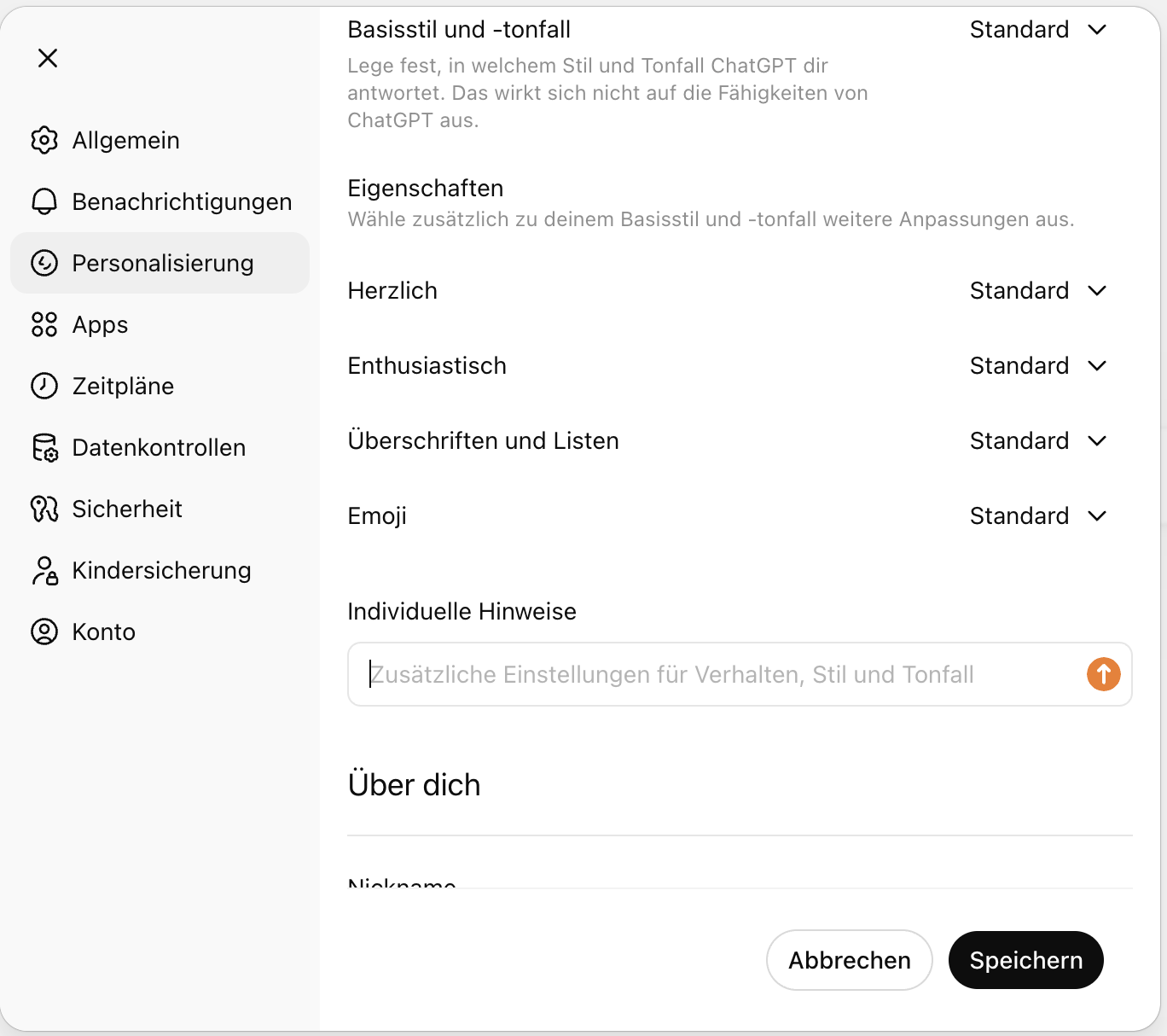
ChatGPT advantage: The two-field split is intuitive and covers exactly the two core areas of an AI Operating System – context and behaviour.
What to actually put in
The same basic structure applies in both tools. Use the template from Part 1 as a starting point and adapt it to your situation.
For Claude, paste the full system prompt as a single block into the project instructions field.
For ChatGPT, split the prompt: identity, goals and work structure go into “What should ChatGPT know about you?”, communication style and limits go into “How should ChatGPT respond?”.
Conclusion
Setup takes 10 to 15 minutes once. After that, the AI works with your context from the very start – without you having to re-explain it in every conversation. That’s the real leverage of the AI Operating System: define once, benefit permanently.